Accessing JupyterLab
JupyterLab runs on your instance and listens on port 8888 by default. Keep it private. Use SSH port-forwarding.
Start an instance
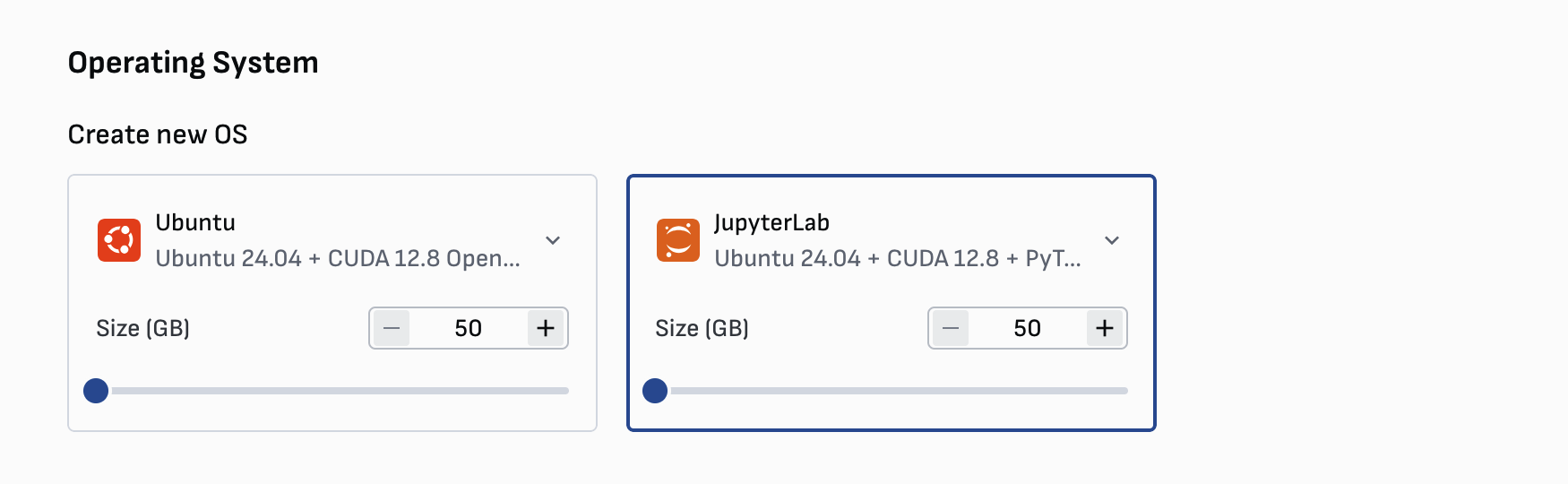
Pick JupyterLab as the Operating System.
Secure the instance
Do this before you run any public-facing services:
Warning
Do not open port 8888 to the internet. Prefer SSH tunneling.
Connect from your browser (recommended)
1) Create an SSH tunnel
Run this on your laptop/desktop:
Keep this SSH session open while you use JupyterLab.
If you use root, the command looks like:
If JupyterLab uses a different port, forward that port instead.
2) Open JupyterLab
Open this URL in your browser:
3) Get the token
Option A: From the Verda console (fastest)
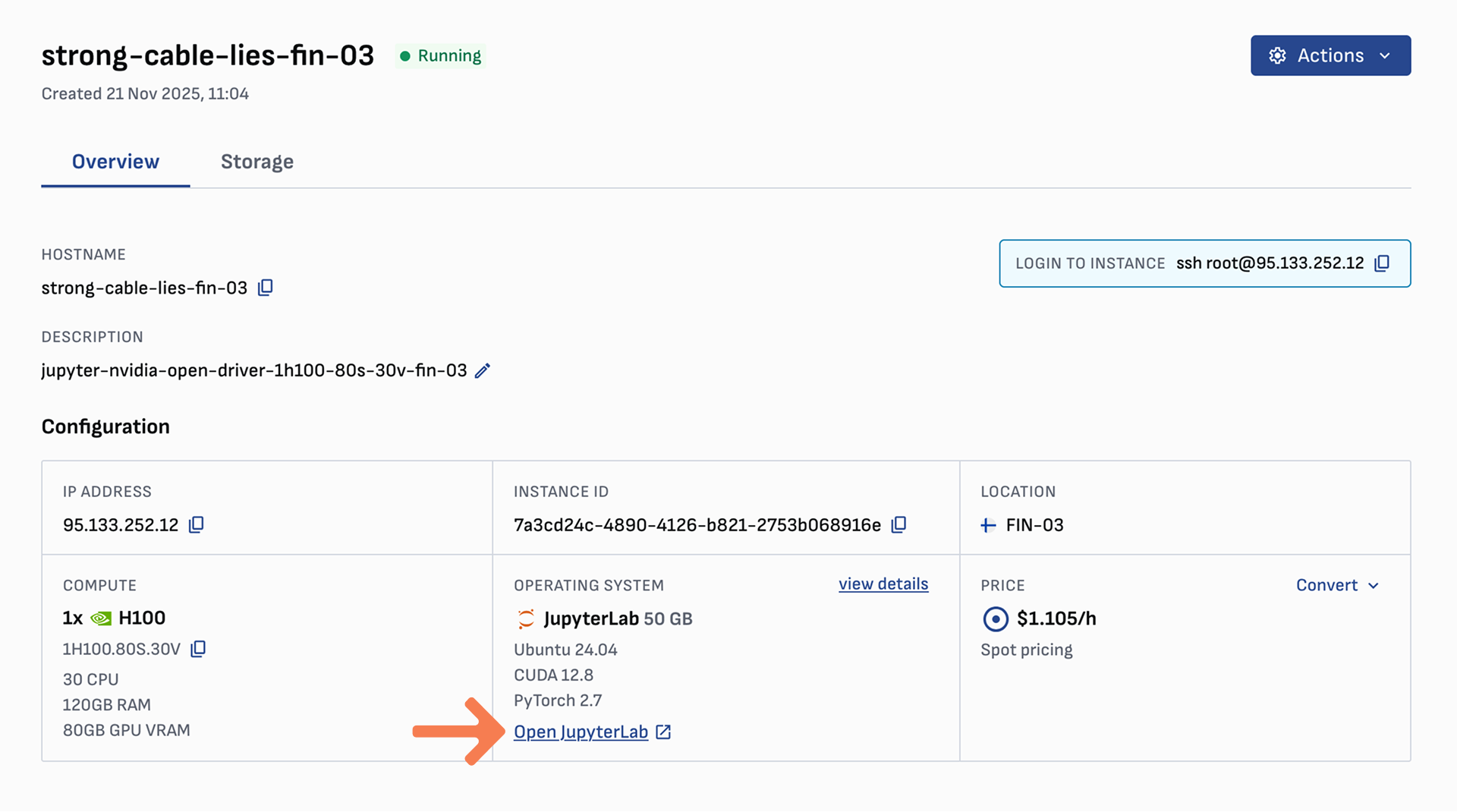
Open the Open JupyterLab link on the instance card. Copy the token=... value from the URL.
Option B: From the instance (Docker)
If you can SSH into the instance, print the running server list. It includes the full token URL.
# SSH into the instance
ssh root@IP_OF_YOUR_INSTANCE

# Find the Jupyter container name or ID
# (it is often named "jupyter")
docker ps

# Print the server list (includes the token URL)
docker exec jupyter jupyter server list

# Or use the container ID
# docker exec <container-id> jupyter server list
You’re looking for a line like:
http://localhost:8888/?token=...
If Jupyter is running on the host (not in Docker), run this instead:
(Optional) Connect from VS Code
VS Code connects to the same forwarded URL. Use the Jupyter extension. Then point the kernel URL at:
http://127.0.0.1:8888
Continue here for the VS Code flow: