Connecting to Jupyter notebook with VS Code
Use VS Code when you want editor features like linting and AI copilots. You’ll connect VS Code to the Jupyter server running on your instance.
Before you start
Follow this first:
That flow covers:
- Securing your instance (Securing Your Instance)
- Creating the SSH tunnel to
127.0.0.1:8888 - Getting the
token=...value
Info
Keep the SSH tunnel terminal open while you use VS Code.
Connect VS Code to the remote kernel
Make sure the VS Code Jupyter extension is installed. Then connect to the forwarded URL (http://127.0.0.1:8888).
-
Select an existing Jupyter server
Open any local
*.ipynb. Select Existing Jupyter Server.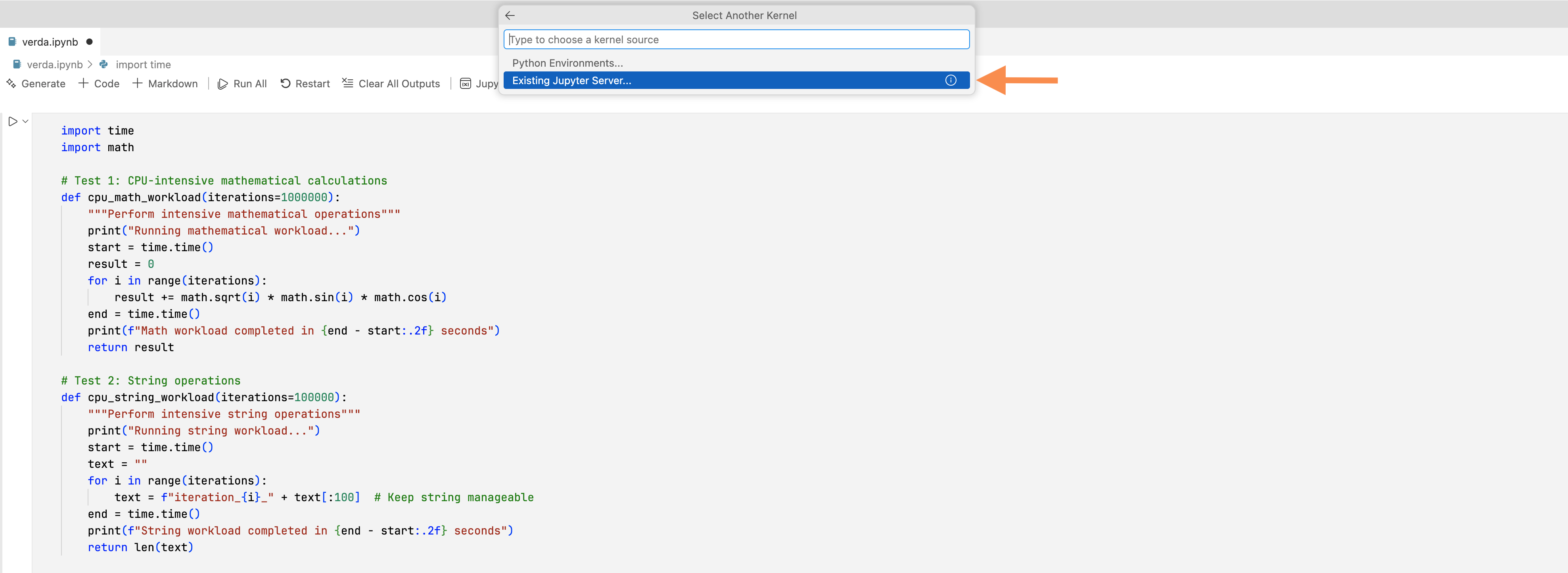
-
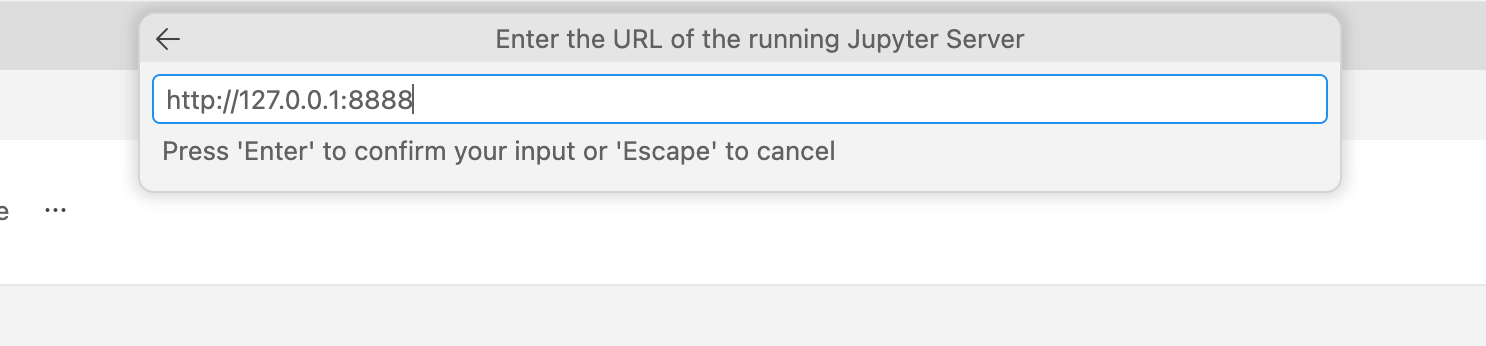
Enter the local forwarded URL
Use:
http://127.0.0.1:8888
-
Authenticate with the token
When prompted for a password, paste the Jupyter
tokenvalue.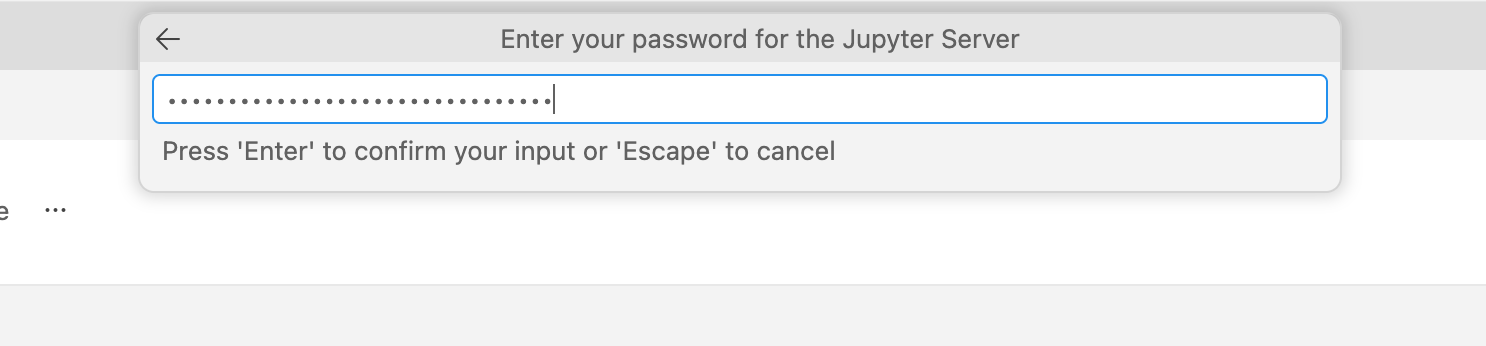
-
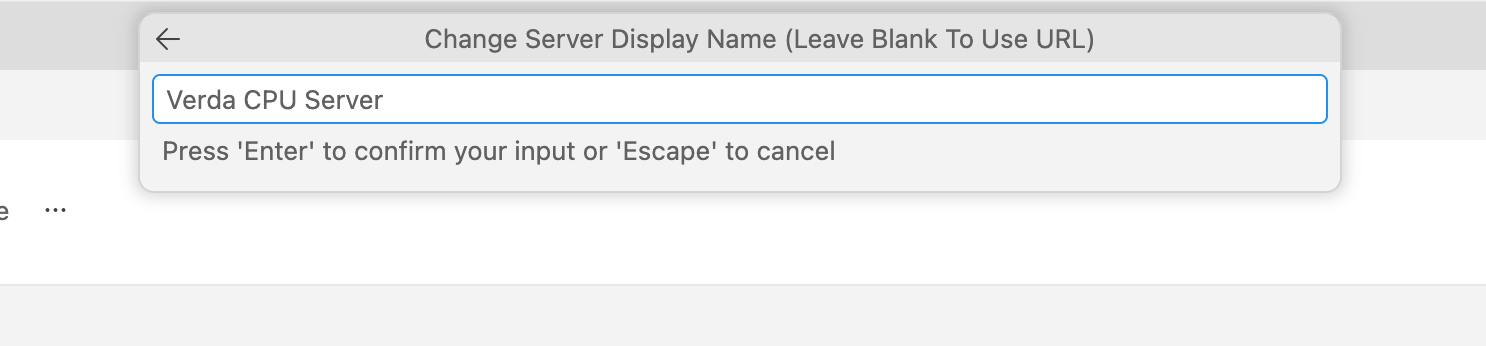
Name the server
Pick any display name.
-
Select a kernel
Choose a kernel. These are typically available on the image:
- Julia
- Python (Conda)
- R
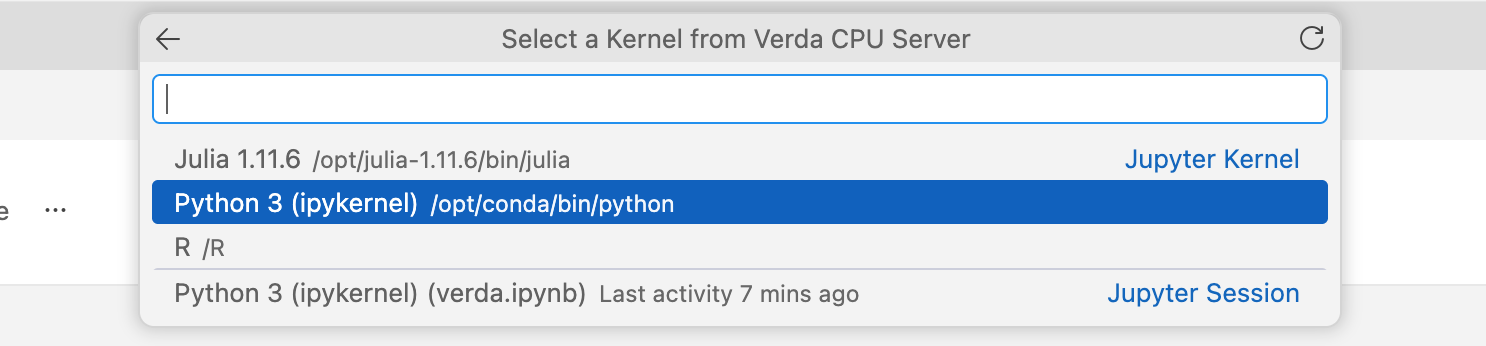
You should now be able to run code on your remote machine through VS Code.